Fingerprint Scanner for Your Project – 2

This type of fingerprint scanner is more popular. Similar to the GT-521FX2, it is based on a Cortex-M processor, AS608 from SynoChip. AS608 is also equipped with CMOS image sensor interface just like Holtek HT32F22366, but its clock speed is much higher (144MHz vs 96MHz) and has twice Flash space (512KB vs 256KB).

A company called ZhianTec (couldn’t find homepage) seems to be responsible for the image processing algorithm and so the firmware. This type of scanners are known as ZFM-20 (ZhianTec part number) or DY50 (probably from copycats). I’ve got mine from an ebay seller for around $8.

Price of this module is remarkable considering its quality: fine PCB boards, nice glass prism, and not so bad enclosure. It is even more remarkable when compared to GT-521FX2 discussed previously. Price-wise it is only fraction but quality is superior including MCU power.

The gold round rectangular pattern is the capacitive touch sensor. It looks like the sensor works independently from the main MCU. There might be a variation that does not come with the touch sensor. You can tell from the pinout of the connector. In the older ones, Pin 5 and Pin 6 may not have connection (NC).

  • (Pin 1) GND
  • (Pin 2) UART_RX
  • (Pin 3) UART_TX
  • (Pin 4) 3V3
  • (Pin 5) Touch_Out
  • (Pin 6) Touch_Vcc

Touch sensor is located at the bottom of the prism. Two green LEDs illuminate the finger on the prism and the camera captures the image.

At the back of the device, you have a 6pin connector, pinout of which is shown above. There is a PCB pattern that looks like a USB interface. You may need custom USB driver. Or it just could be a USB-CDC device.

Best source for the information for this type of scanners is probably Adafruit. Alternatively you can google it with the key word ZFM-20 then you can find the manual without much difficulty.

(Protocol) Its protocol is much more sophisticated than GT-521FX2, which allows you greater flexibility in control the device. It also gives you detailed status output only if you don’t mind a bit lengthy programming.

(Enrolment) The device requires two consecutive image captures to generate a template. Surprisingly this process is very reliable and fast, exact opposite to the GT-521FX2. It might be partly because it has simpler image processing algorithm and partly because it uses internal FLASH to store the data. Also it has SRAM twice the size of GT-521FX2.

(Authentication) Authentication is also very fast and reliable. I didn’t do much test to have confident numbers but it has high enough specificity/ sensitivity so that it can be used for any personal project that requires medium security level.

1 to N match could be a bit different but in 1 to 1 match, this device brings up the template from the FLASH storage to SRAM buffer and does the match in the SRAM. So it is remarkably fast.

This fingerprint sensor is beyond my expectation both in and out especially after the deep frustration with the expensive GT-521FX2. Only downside is that the backlight LED is turned on always. You may want to have a load switch to control the power of the device directly. You can find my example code here.

Fingerprint Scanner for Your Project – 1

Although fingerprint scanners are widely used in smart phones, laptop computers, and security systems, it is not easy to find a good one for your personal project. Sometimes you come up with a product that looks promising but fails miserably.

Two types of fingerprint scanners are readily available. And both share similarities in terms of hardware but perform very differently.

ADH-Tech GT-521F32 / GT-521F52 is less popular one of the two but more recent. It is based on a Cortex-M3 MCU (Holtek HT32F22366). This MCU is equipped with CMOS image sensor interface thus can capture still image up to certain size.

The scanner module has a UART interface to communicate with host processors. It also exposes pads for USB connection at the bottom, which I didn’t try for apparent reasons.

The front glass is frosted, reasons for which is unclear. It may works as an optical blur filter, thus reduce the computational burden at the expense of accuracy. Or it may have something to do with image acquisition without bulky prism structure that can be found in the second type, which we will discuss later.

(Protocol) Protocol for this device is rather simple, which has pros and cons. It is easy to use at one hand but it does not provide any useful information about inner workings.

(Registration) To register your fingerprint image, you need to perform three consecutive scans and pass all three stages. At the first scan, it usually has no issues. However at the second scan, it fails about half of the time. At the third scan it fails almost 90% of the time.

Reasons again are not clear as it does not provide any coherent error messages. The algorithm certainly tries to creates a template by averaging three images but may fail to do it. Or it created a template but may fail to save it to the external flash drive. Whatever the reason you need a lot of patience to register just one finger.

One thing to notice about this registration business is that some of the Arduino libraries written for this device does not check this registration error. So it ends up with failing to create a template image without any indication to the users. So you may not aware but you have no template generated.

(Authentication) Once you were able to register your fingerprint, you can use the template to authentication. Here again the device shows issues. Roughly 20% of the time it fails to recognise the correct finger. And with similar rate, it falsely authenticate wrong fingers as legit one.

Low sensitivity is annoying but at least it is not harmful. But the low specificity makes this device is useless for any security application. Furthermore, it is much slower than the second type. It looks like it is equipped with more sophisticated algorithm, which fails to do the job.

Good part of this device is that it detects the presence of the fingers quite reliably. So you can use it as a touch sensor at least. And it has a nice white LED backlight too, which you can turn on or off using commands. However if you are looking for a functioning fingerprint sensor, then forget about this device.

Onion Omega2 Kernel Compilation

Onion is probably the only company who manages MT7688AN SoC firmware otherwise completely abandoned by MediaTek. Without their effort, either you have to stick with OpenWrt 15.05 or you have to struggle with the issues of porting current version of OpenWrt on this platform.

Among other things, sub-optimal performance and instability of the open source MT76 WiFi driver should be addressed. Onion version of OpenWrt not only solves this issue, it comes with tons of useful additions, not to mention their impressive documentation and online community support. This is my personal exercise to build Omega 2 flavour of OpenWrt 18 using their source.

Clone the source from the Onion’s repository. The github repository has three branches and by default openwrt-18.06 branch will be selected. As of this writing however current official build is still based on lede-17.01 branch. This is not correct. New version are based on openwrt-18.06 and official built images and packages are hosted in a new location.

Thus to work on the OpenWrt 18.06 version:

git clone https://github.com/OnionIoT/source.git
cd source
git log --grep "b218:"
git checkout adfead5c -b build218
sh scripts/onion-feed-setup.sh
git checkout .config
sh scripts/onion-minimal-build.sh
make -j

To work on the most recent official previous build (lede 17 – b202 or older) instead:

git clone https://github.com/OnionIoT/source.git
cd source
git checkout lede-17.01 -b build202
sh scripts/onion-feed-setup.sh
git checkout .config
sh scripts/onion-minimal-build.sh
make -j

This build is based on LEDE 17. Thus if your host system is Ubuntu 18.04 then it is not recommended to recover the .config file, which is likely to introduce compilation errors.

NFC Tag Reader on Raspberry Pi

Venerable PN532 based NFC readers are cheap and easy to find. You can get one from ebay or aliexpress as low as $5 or even less.

And these readers are supported by libnfc so you can install driver directly from Debian package repository.

$ sudo apt install libnfc-bin libnfc-dev
$ sudo apt install libnfc-examples libnfc-pn53-examples

You need to enable I2C interface if not done already. If enabled, you should be able to see the device under /dev folder. Depending on the hardware it could be /dev/i2c-0.

libnfc checks its configuration file for hardware settings. Open up the file /etc/nfc/libnfc.conf and make sure it has following settings enabled. You may need to sudo to change the contents. For more information about the settings, check this page.

allow_autoscan = false
device.name = "PN532"
device.connstring = "pn532_i2c:/dev/i2c-1"

At this point you should be able to compile and run a program using C language. A simple example can be found here. If you need a reference manual of the library, download a stable source tar ball from this page and follow the instruction to generate documentation or simply run a doxygen.

To use python, you can use ctypes. Load the library and create python proxy for the following two header files

/usr/include/nfc/nfc.h
/usr/include/nfc/nfc-types.h

Then you can call the same functions in python.

A python example in this repository runs a separate thread for NFC tag reading. Thus main thread is free from doing other tasks instead of being blocked by the NFC function calls. It displays tag ID whenever new tag is detected until a certain tag is showed up.

I2C Bit Banging Driver for LinkIt Smart 7688

I2C peripheral in LinkIt Smart 7688 works most of the cases. But it has some issues with devices that respond with NACK frequently. In such cases, you can replace the kernel driver that utilises internal I2C peripheral with a bitbanging driver that emulates I2C using GPIOs.

LinkIt Smart 7688 has most of the GPIOs allocated for peripherals such as I2C, SPI, UARTs. So let’s switch the ports allocated to I2C to GPIOs first. This can be done by directly manipulating the corresponding multiplexer.

Linux DEVMEN (/dev/mem) virtual driver allows this manipulation by exposing memory mapped port control registers. Run make menuconfig and select: Global build settings > Kernel build options > /dev/mem virtual device support.

This will create a /dev/mem driver at the target machine. You can write a simple script or you can use omega2-ctrl utility to control the multiplexers. Usage of the utility can be found here. What you want to is to set the GPIO4 pin and GPIO5 pin under the control of GPIO logic.

# omega2-ctrl gpiomux set i2c gpio

Nex, you need a set of drivers for the bitbanging of I2C. Run make menuconfig and select followings under Kernel modules > I2C support >

  • kmod-i2c-core
  • kmod-i2c-algo-bit
  • kmod-i2c-gpio
  • kmod-i2c-gpio-custom

Due to the dependencies, you choose the last one then all the others should follow. You can install them as separate kernel modules or you can select all the modules to be included in the kernel except the last one. You have to specify the GPIO pins for the I2C bitbanging by manually calling insmod

# insmod i2c-gpio-custom bus0=0,5,4

Note that actual driver (/dev/i2c-0) won’t be populated until the above driver is loaded. After that you can use i2cdetect command to check if it is actually working.

Connecting LinkIt Smart 7688 to internet via Wi-Fi

In this post, we will assume that you want to use Wi-Fi to connect your device to the internet. This can be the situation when you build a WiFi enabled IoT device using LinkIt Smart 7688.

Alternatively you can use this mode to create a device that connects to your main AP through WiFi, while provides an internet access to other devices through Ethernet. This is the reverse configuration of the dumb AP mode discussed before.

In OpenWrt term, this is WiFi Extender or Repeater or Bridge Configuration. This mode is not supported by the default settings of OpenWrt. Main reason is that WiFi driver does not support bridging when it is in client (station) mode. Thus you need an additional service from the package named relayd. Please check previous post for the instruction how to install this package and others (luci-proto-relay).

In this page, you can find detailed instruction for setting up this mode, both using LuCI and CLI. Here again we summarise the process using CLI. There are some differences as well.

First change the subnet address of lan, which might be optional but just for the sake of safety.

# uci set network.lan.ipaddr='192.168.2.1'

Create a relay network for the bridging between lan and the WiFi (wwan) which will be in station mode. This will bind lan and wwan.

# uci set network.repeater_bridge=interface
# uci set network.repeater_bridge.proto='relay'
# uci set network.repeater_bridge.network='lan wwan'

Then create a network wwan and run DHCP on it, so that the device can connect to the main AP via WiFi.

# uci set network.wwan=interface
# uci set network.wwan.proto='dhcp'

Add all network to the firewall zone

# uci set firewall.@zone[0].network='lan repeater_bridge wwan'

But prevent DHCP from running on lan network.

# uci set dhcp.lan.ignore='1'

Now, according to the OpenWrt document, you need to create a new wireless interface for wwan and set it to station mode. However for some reason creating a second interface is not allowed in MT7688. So we turn the first interface into this role instead.

# uci set wireless.default_radio0.mode='sta'
# uci set wireless.default_radio0.network='wwan'
# uci set wireless.default_radio0.ssid='your AP SSID'
# uci set wireless.default_radio0.bssid='your AP BSSID'
# uci set wireless.default_radio0.encryption='psk2'
# uci set wireless.default_radio0.key='your super secret key'

Do not forget to activate radio0 device if not done already.

# uci set wireless.radio0.disabled='0'

You may need BSSID of the target AP in the above step. To check it run following commands

# iw dev wlan0 scan > /root/ap_list
# vi /root/ap_list

Connecting LinkIt Smart 7688 to internet via Ethernet

If you want to set up the LinkIt Smart 7688 as an IoT device, and if you want to use its Ethernet port for the uplink connection, i.e., connection to the main router or to the modem, then this is the setting you will have.

Alternatively if you have an Ethernet only router and want to have an AP (access point) to the router then this is the setting as its name means. OpenWrt keeps a very good document for this setting.

In this mode the device receives its IPv4 address from the main routher through Ethernet port (eth0), while the WiFi (wlan0) creates an AP of its own. Relation between eth0 and wlan0 is direct and transparent to any WiFi devices that are attached to the AP. So the dumb AP.

Let us assume that a subnet 192.160.0.x is created by the main router. When the MT7688 device is connected to the router, it receives an IP address, say 192.168.0.24 through eth0, becomes the address of the lan. This address will be advertised as the address of the AP by wlan0 as well.

Setting up process can be done via LuCI. But here we use uci, whose documentation can be found here. Just follow the procedure here. Followings are the summary.

First change the network protocol for lan to dhcp.

# uci set network.lan.proto=dhcp

Disable and stop dnsmasq service.

# /etc/init.d/dnsmasq disable
# /etc/init.d/dnsmasq stop

We do not need DHCPv6 on lan either. After the change, commit it.

# uci set dhcp.lan.dhcpv6=disabled
# uci set dhcp.lan.ra=disabled
# uci commit

Further disable and stop firewall.

# /etc/init.d/firewall diable
# /etc/init.d/firewall stop

Apply the change and restart network. If necessary reboot the device

# /etc/init.d/network reload

At this point, if you plug the device into the main router. It works as an Ethernet enabled device, while WiFi is disabled by default. Thus it is the desired state as an IoT device with Ethernet.

If you want instead to set it as a AP, then just bring up the wlan0.

# uci set wireless.radio0.disabled=0
# wifi

Install OpenWrt v.18.06 on LinkIt Smart 7688

LinkIt Smart 7688 is an affordable platform that runs OpenWrt. Original firmware released by MediaTek is based on OpenWrt v15. Many of packages such as node or npm are not very useful. Besides it is quite bloated.

Until recently upgrading OpenWrt version of this device was not easy due to lack of support from MediaTek especially in the Wi-Fi driver. That has been changed recently as new OpenWrt v18 is announced.

Building firmware is painless and fast. And it comes with an open source Wi-Fi driver (mt76) replacing out-dated MediaTek driver, which works quite well.

Start with cloning the source and check out one of the tagged version:

git clone https://github.com/openwrt/openwrt.git
git checkout v18.06.2 -b testing

You can choose to work with the most recent checkout. However if you chose to use one of the versions for which OpenWrt maintains package repositories then you can simply download the precompiled packages from the repository.

Process of firmware building is well documented here. You may need to install some libraries and utilities. After the initial setup (installing feeds) is done, run menuconfig. Then choose following options for the target system:

  • Target System: MediaTek Ralink MIPS
  • Subtarget: MT76x8 based board
  • Target Profile: MediaTek LinkIt Smart 7688

For the other settings, you may want to include LuCI at least. Other default settings may fit your purpose or may not. In my case, I choose following components additionally:

  • Kernel modules -> I2C support -> kmod-i2c-mt7628
  • Language -> Perl -> perl
  • Libraries -> libavahi-client
  • LuCI -> collections -> luci
  • LuCI -> Protocols -> luci-proto-relay
  • Network -> Routing and Redirection -> relayd

Build speed is a lot faster than v15. For the latter, you need to install Ubuntu 14.04 first as a host system, otherwise the process will break at many points.

To update the firmware you can use Web interface (LuCI) or USB thumb drive. Check this page for the instruction when you are upgrading from old MediaTek firmware. After the upgrade, it depends on the new firmware, which may be different from the old one. Likewise if you upgraded the bootloader, your booting process and firmware upgrade method via bootloader may change as well.

Bear in mind that when you use the USB drive to update, the file name must be lks7688.img for the firmware and lks7688.ldr for the bootloader. Otherwise it is not recognised.

You may find it useful to have a terminal on a UART channel until network setup is finished, baudrate of which is set to 57600 not 115200.

By default, WiFi interface is not activated. You can bring it up by:

# uci set wireless.radio0.disabled=0
# wifi

If you for some reason want to do factory reset, run commands below. If console is not working then perform fail-safe boot by clicking the MPU reset button then entering ‘f’ key followed by ‘enter’ key when asked during the boot process.

firstboot
reboot

AWS IoT FreeRTOS Sample

Amazon FreeRTOS sample code includes STM32L4 Discovery kit IoT node (B-L475E-IOT01A board), for compilation of which you need to install System Workbench for STM32, an Eclipse based IDE. However it can be avoided if you can build Makefile based environment with following steps.

(download source) Download the source code from Amazon and expand it into the directory of your choice, say AmazonFreeRTOS. It has three directories as explained in the directories.txt file.

(collect user folders) User files are in the two common directories under the demos.

Create a project directory, say aws_demos, create src subdirectory, and copy all the directories under two common directories into src.

(project root files) Populate the root folder of the project with following files:

  • Makefile
  • startup_stm32l475xx.s (startup code)
  • STM32L475VGTx_FLASH.ld (liker script)
  • jlinkcmd (JLink command script: optional)

Start up code can be found under

  demos/st/stm32l475_discovery/common/application_code/st_code

And linker script file can be found under

  demos/st/stm32l475_discovery/ac6

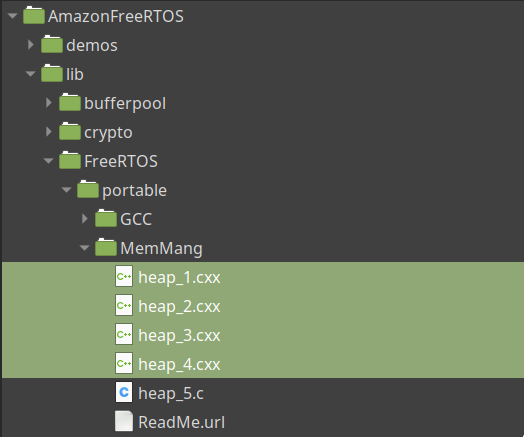
(remove unnecessary files) The source code comes with several files with the same definitions for memory handling, of which you are supposed to link only one file. The Makefile here collects source files automatically by the file extension. Thus you have to remove the unnecessary files from the directory or at least change the file extension. Otherwise you will have conflict definitions. In this case following files need to be removed. You need only heap_5.c.

(change Makefile) Finally, you may need change GCC_PATH variable to match your toolchain setting.

(source code)

Zephyr Example 3: DHCP Client

In this post, a FRDM-K64F board is used. Many networking sample codes support this board. Create an empty project, run menuconfig, select:

  • NETWORKING
  • NET_IPV4, NET_ARP, NET_TCP, NET_UDP
  • NET_DHCPV4
  • NET_MGMT, NET_MGMT_EVENT,
  • LOG, NET_LOG, and
  • INIT_STACKS

You can deselect NET_IPV6 if you do not need it. If you know the CONFIG_ keyword, search feature of the menuconfig would be very handy. Type / (slash) and enter keywords.

Copy sample main.c from (Zephyr_Root)/samples/net/dhcpv4_client and build it. You should be able to see the dhcp client is working.

    1 [00:00:00.005,549] <inf> net_dhcpv4_client_sample: Run dhcpv4 client
    2 [00:00:06.027,746] <inf> net_dhcpv4: Received: 10.1.1.38
    3 [00:00:06.027,785] <inf> net_dhcpv4_client_sample: Your address: 10.1.1.38
    4 [00:00:06.027,787] <inf> net_dhcpv4_client_sample: Lease time: 43200 
      seconds
    5 [00:00:06.027,801] <inf> net_dhcpv4_client_sample: Subnet: 255.255.255.0
    6 [00:00:06.027,817] <inf> net_dhcpv4_client_sample: Router: 10.1.1.1

Zephyr has a concept of subsystem, which runs in parallel with the main thread. Shell is a subsystem, something akin to Unix shell. When used with networking, it provides very convenient ways to test and debugging.

To activates the networking shell, choose NET_SHELL. Rebuild and flash it. You will notice that now UART connection works as a shell.

For example, enter command net iface, you will get

Unfortunately this shell is not as reliable as you may wish as of this writing. I have seen some strange things, which might be related to logging features or mate terminals. It certainly will be a valuable tool for debugging in the future.